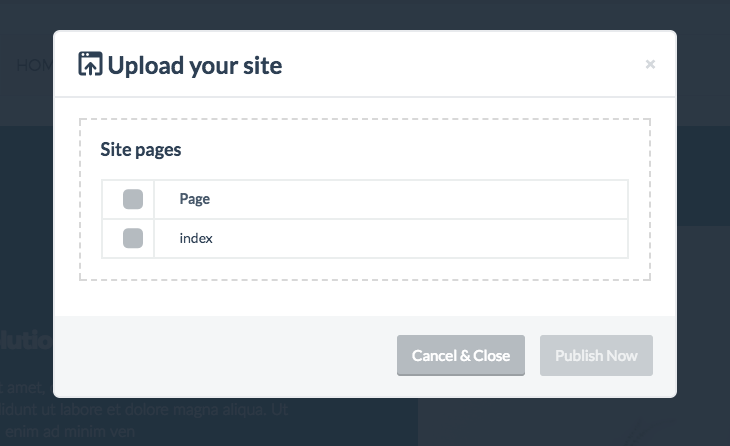
End-users can upload their sites to a remote server by either regular FTP or sFTP.
To be able to upload via FTP/sFTP, the end-user will first need to provide the connection details in the Site Settings panel (click on the dropdown arrow in the top right corner, then click “Setting Settings”).
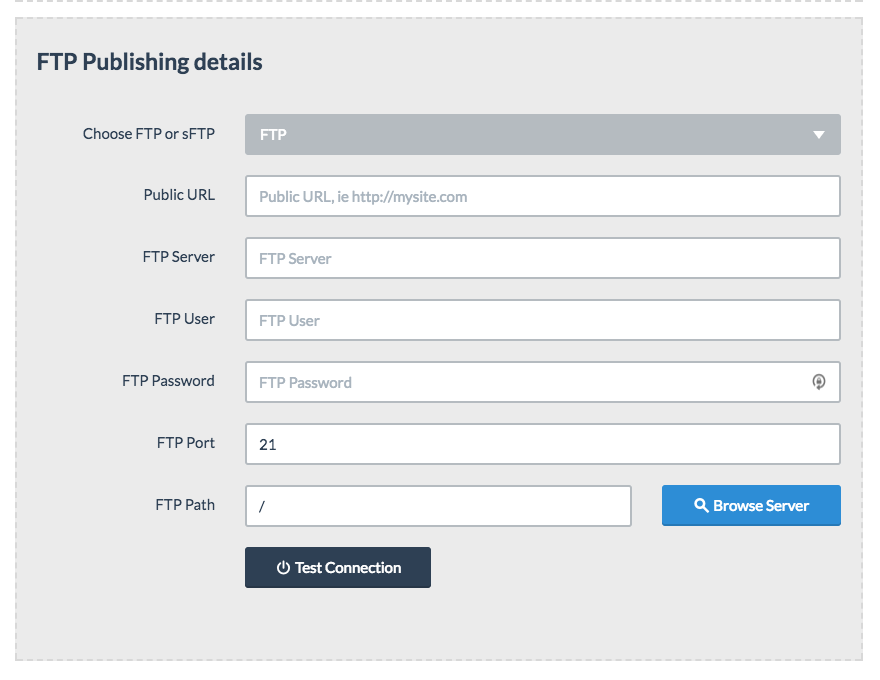
After providing FTP or sFTP connection details, the end-user can test the details by clicking the button labeled “Test Connection”. Additionally, the end-user can use the “Browse Server” function to locate a specific path on the server.
Please note that when using sFTP, a full path will need to be provided. Without providing a full path, a sFTP connection can not be established.
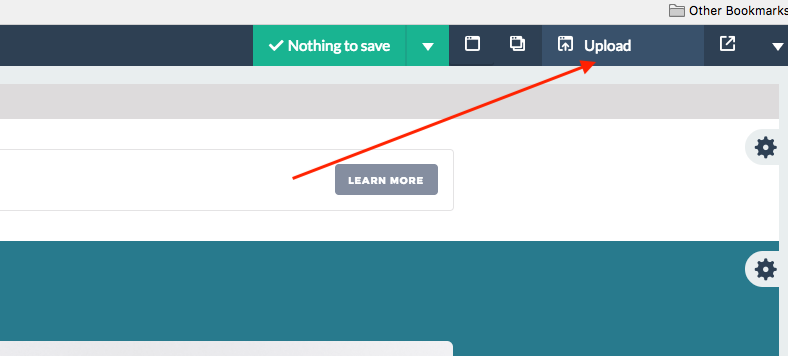
Once FTP or sFTP details have been provided and saved, the end-user can now proceed to upload their site to the remote server. They do this by clicking the “Upload” button in the toolbar as shown below:
Clicking this button will reveal a modal window allowing the end-user to choose which pages to upload to the remote server: